What Is Adware, Really?
If your browser has started opening tabs you didn't ask for, or your homepage now belongs to a search engine you've never heard of, you're dealing with adware — and no, restarting your computer for the fourth time this week will not fix it. Adware removal is one of the most searched computer support terms in the US for a reason: this stuff is everywhere, it's annoying, and most people don't realize how deep it's burrowed in until their machine is basically a pop-up billboard with a keyboard attached.
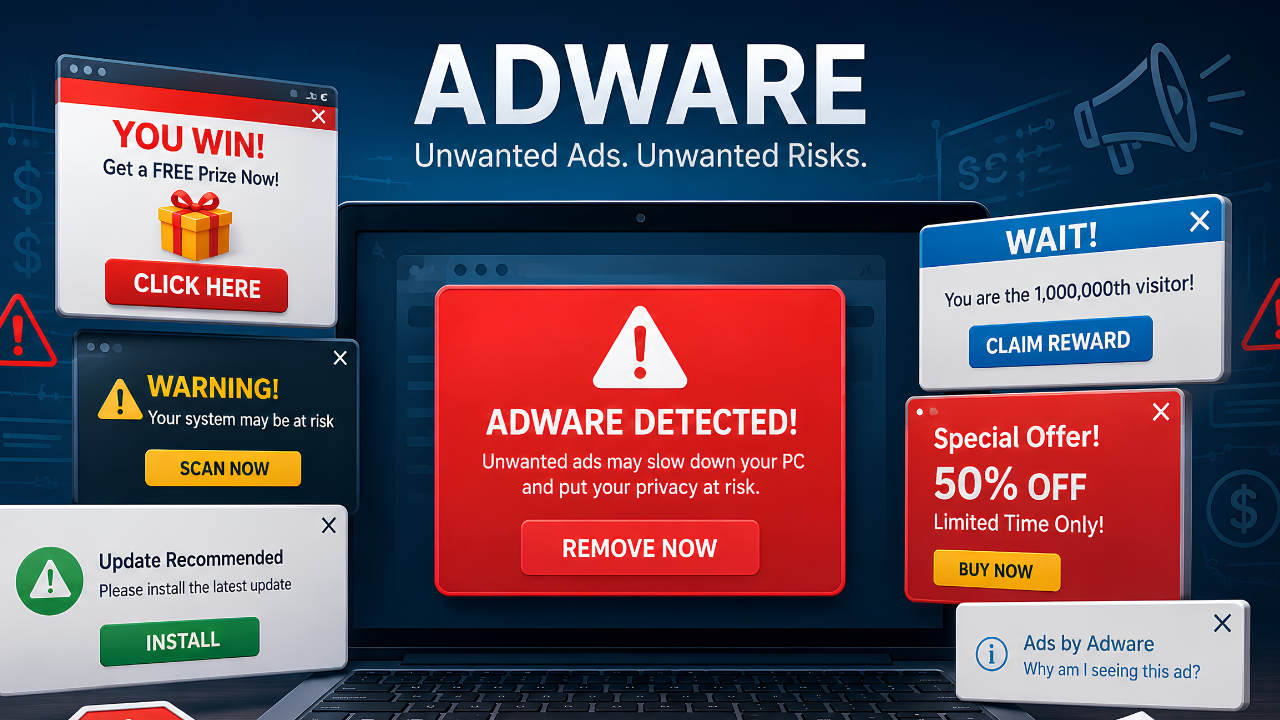
Adware is unwanted software that bombards you with advertisements — pop-ups, banner ads, redirected searches, "recommended" toolbars nobody recommended. It's not always dangerous in the way ransomware is dangerous, but it's a symptom of a bigger problem: something got onto your machine without your full, informed consent, and that's never a good precedent to set. Think of it as the neighbor who never asks before borrowing your lawnmower. Eventually you start wondering what else they've been borrowing.
Unlike a virus, adware usually doesn't try to destroy your files. It tries to make money off your attention, your clicks, and sometimes your browsing data. That's arguably worse for your sanity, if not your hard drive.
How Adware Is Different From Spyware, Viruses, and Malware in General
People throw around "virus," "malware," and "adware" like they're interchangeable, and honestly, in casual conversation, sure. But if you're trying to fix the problem, the distinction matters:
- Malware is the umbrella term for any malicious software — adware, spyware, ransomware, and viruses all live under it.
- Adware exists to serve you ads, often by injecting them into your browser or redirecting your searches through affiliate links.
- Spyware is quieter and creepier — it watches what you do, logs keystrokes, or tracks browsing habits, usually without a single pop-up to tip you off.
- Viruses replicate themselves and attach to other files or programs, often causing direct damage or spreading to other machines.
Adware and spyware sometimes travel together, like a bad influence bringing a worse influence to the party. An adware infection that's been sitting quietly for months has had plenty of time to pick up spyware-like habits, which is one reason a "just some ads, no big deal" mindset gets people into trouble.

How Adware Gets Onto Your Computer in the First Place
Nobody wakes up and decides to install adware. It rides in on the back of something else, which is exactly the problem. Common entry points include:
Bundled Software Installers
You download a free PDF converter, a "system optimizer," or a browser extension, and buried in the installation wizard is a pre-checked box that also installs three other things you never asked for. Most people click "Next" through installers the way they click "Agree" on terms of service — fast, blind, and hopeful.
Malicious or Misleading Ads
Ironically, adware often spreads through ads. Clicking the wrong "Your PC is at risk, click here to scan now" banner can trigger a silent download in the background. It's ads all the way down.
Fake Browser Extensions
Extensions promising to "save you money" or "block ads" are, occasionally, doing the exact opposite — injecting their own ads while pretending to fight them. This is the digital equivalent of a fox not just guarding the henhouse but redecorating it.
Cracked Software and Torrents
Free versions of paid software are a classic Trojan horse — sometimes literally. If it seems too good to be free, it usually came with a little something extra.

Signs Your Computer Has an Adware Infection
Adware is rarely subtle, which is honestly its one redeeming quality — unlike spyware, it wants to be noticed. Watch for:
- Pop-up ads appearing even when your browser is closed
- A new homepage or default search engine you didn't set
- Browser toolbars or extensions you don't recognize and definitely didn't install
- Noticeably slower browsing, freezing tabs, or a fan that runs like it's training for a marathon
- Search results that redirect through unfamiliar sites before landing where you wanted to go
- Random "system alert" pop-ups urging you to call a support number or download a "fix"
If you're nodding along to two or more of these, it's less a hunch and more a diagnosis at this point.

How to Remove Adware From Your Windows PC (Step by Step)
Here's the part where we stop describing the problem and start solving it. This process works for most Windows 10 and 11 machines, and none of it requires a computer science degree — just patience and a willingness to actually read the checkboxes this time.
Step 1: Disconnect From the Internet
Some adware calls home to download more junk once it senses you're onto it. Disconnecting Wi-Fi or unplugging the ethernet cable for the removal process cuts that line of communication.
Step 2: Boot Into Safe Mode
Safe Mode loads Windows with only essential processes running, which means most adware won't even start up. Restart your PC, and during boot, hold Shift while selecting Restart, then navigate to Troubleshoot > Advanced Options > Startup Settings > Restart, and select Safe Mode with Networking once you need internet access again.
Step 3: Uninstall Suspicious Programs
Go to Settings > Apps > Installed Apps and sort by install date. Look for anything unfamiliar, especially programs installed around the time the pop-ups started. When in doubt, a quick search of the program name plus "adware" will usually tell you what you're dealing with.
Step 4: Clean Up Your Browser
Adware loves living in your browser more than anywhere else. For Chrome, Edge, or Firefox:
- Remove unfamiliar extensions from the extensions/add-ons menu
- Reset your homepage and default search engine
- Clear your browsing data and cached files
- Reset the browser to default settings if the problem persists
Step 5: Run a Full System Scan With Dedicated Anti-Malware Software
Windows Defender catches plenty, but dedicated anti-malware tools are built specifically to catch the sneakier adware and spyware variants that slip past general antivirus definitions. This is where a tool like DT Malware Safe earns its keep — it's built to hunt down the exact kind of browser-hijacking, ad-injecting junk this article is about, and it does it without demanding you take out a second mortgage on your peace of mind.
Step 6: Reset DNS and Check Your Hosts File
Advanced adware sometimes modifies your DNS settings or hosts file to redirect traffic. Resetting your DNS to default (or to a trusted provider) and checking your hosts file for suspicious entries closes that loophole.
Step 7: Update Everything
Once you're clean, update Windows, your browser, and any software that was out of date. Old software is basically an unlocked door with a note that says "please come in."
Adware Removal: DIY vs. Professional Computer Support
Some infections are a fifteen-minute fix. Others have nested deep enough that removing them without expertise just makes the ads reappear a week later, like a bad sequel nobody asked for. Here's how to know which situation you're in.
| Situation | DIY Removal | Professional Computer Support |
|---|---|---|
| Occasional pop-ups, one unfamiliar extension | Usually sufficient | Not required, but available |
| Homepage/search engine hijacked repeatedly after reset | Often insufficient | Recommended |
| Multiple browsers affected simultaneously | Difficult to fully resolve | Recommended |
| Slow performance persists after cleanup | Limited effectiveness | Recommended |
| Suspected DNS or hosts file tampering | Risky without experience | Strongly recommended |
| Business or multi-device network exposure | Not advisable | Strongly recommended |
If your business runs on a handful of shared machines, one infected computer can pass the problem along to every device on the network faster than office gossip. That's the point where a quick DIY pass stops being enough, and a proper diagnostic makes more financial sense than repeating the same fifteen minutes every month. See our computer support services
How to Prevent Adware From Coming Back
Removing adware once is a win. Keeping it gone is the actual goal, and it's mostly a matter of habits rather than heroics.
Read Installer Screens Before Clicking Next
Choose "Custom" or "Advanced" install options whenever they're offered, and uncheck anything you didn't specifically go looking for. It adds thirty seconds. It saves hours later.
Stick to Official Sources
Download software from the developer's official site or a trusted app store, not from a random "download.com" mirror with eleven ads around the download button and only one of them being the actual download.
Keep One Reliable Anti-Malware Tool Running
Running multiple antivirus programs at once tends to cause more conflicts than protection — pick one solid, dedicated tool like DT Malware Safe and let it do its job in the background instead of stacking software the way some people stack browser tabs.
Audit Your Browser Extensions Quarterly
Extensions you installed for one project two years ago are still running, still requesting permissions, and still occasionally still selling your attention to the highest bidder. A quick quarterly cleanup keeps things honest.
Back Up Regularly
Adware isn't usually destructive, but a clean, recent backup means any removal process can be aggressive without the fear of losing something important along the way. Read our full computer backup guide
When Adware Signals a Bigger IT Problem
For small businesses, a single adware-infected laptop is rarely just about that laptop. It usually means the browsing habits, update policies, or software approval process across the whole office needs a second look. Recurring infections across multiple employee devices point to a systemic gap — not just bad luck, and definitely not just one unlucky employee who "clicks on everything."
This is where ongoing, professional computer support pays for itself. Instead of playing whack-a-mole with pop-ups every few months, a managed support plan catches the pattern, tightens the policy, and keeps your team's machines — and your client data — out of the ad-injection business entirely. Get computer support in your state
If your team has also noticed unusual account activity, unexplained charges, or anything sketchier than pop-up ads, it's worth ruling out a deeper compromise while you're at it. Signs your computer has been hacked
Frequently Asked Questions
Is adware dangerous, or just annoying?
Mostly annoying on its own, but it's rarely alone for long. Adware often shares delivery methods with spyware and other malware, and prolonged infections increase the odds that something worse has hitched a ride. Treat it as a warning sign, not just a nuisance.
Can adware steal my passwords or financial information?
Standard adware focuses on ad revenue, not credential theft. However, some adware strains include tracking components that monitor browsing behavior, and a small number cross the line into spyware territory. If you notice unfamiliar account activity alongside pop-ups, treat it as a full security review, not just a cleanup.
Why do the pop-ups keep coming back after I remove them?
Usually because the removal only addressed the visible symptom — a browser extension or program — while a background process, scheduled task, or modified browser shortcut kept reinstalling it. This is the most common reason DIY removal fails and professional support succeeds.
Does a Mac get adware too, or is that just a Windows problem?
Macs get adware too, just less of it, largely because Windows has a bigger install base and therefore a bigger target on its back. The removal principles are similar: check installed applications, clean browser extensions, and run a dedicated anti-malware scan rather than assuming macOS's reputation will do the work for you.
How much does professional adware removal cost?
Pricing varies by how deep the infection runs and how many devices are affected, but a single-device cleanup is typically far less expensive than the hours lost to a business running slow, ad-riddled machines week after week. Get a free quote
Get Your Computer (and Your Sanity) Back
Adware is the digital equivalent of a car alarm that won't stop — technically not an emergency, but everyone around it agrees something needs to happen immediately. Whether you're dealing with one stubborn browser or an office full of machines that all developed the same pop-up problem in the same week, Devtaastic's computer support team can clean it up and put safeguards in place so you're not doing this again next quarter.
Get a free quote today and let's get your systems running the way they're supposed to — quiet, fast, and blissfully ad-free. Get a Free Quote
To see how we implement these standards, browse our Agency Portfolio and Digital Products.