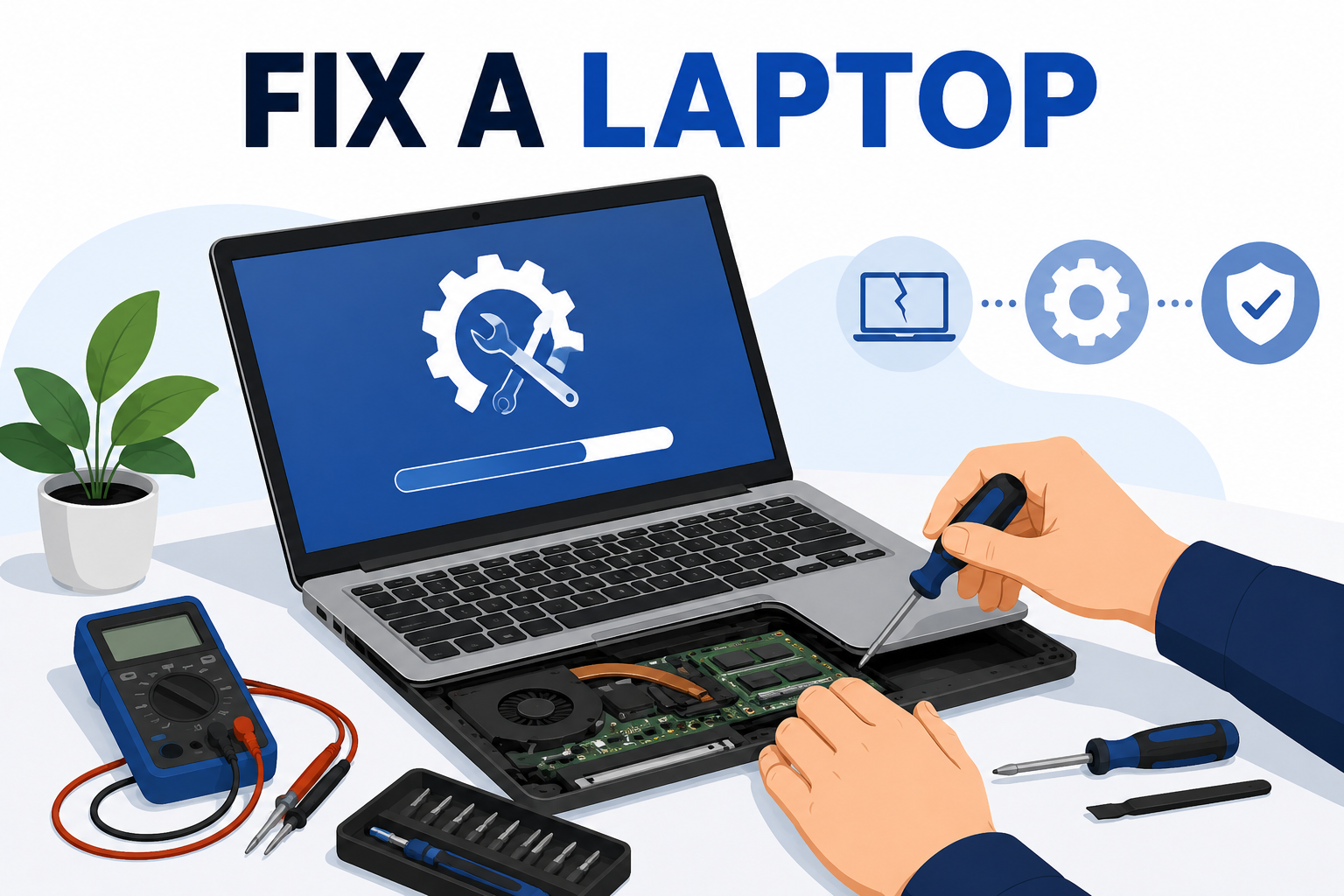
Why Your Laptop Slowed Down in the First Place
If you're searching for how to fix a slow laptop, you already know the feeling: you click something, the spinning wheel shows up, and you have time to reconsider several of your life choices before anything happens. The good news is that a slow laptop is rarely a dying laptop. In the vast majority of cases, it's a fixable buildup of software clutter, a clogged cooling system, or one background process quietly hogging resources like it's paying rent and refusing to leave.
Before you touch a single setting, it helps to know what you're actually dealing with, because "my laptop is slow" usually falls into one of two buckets, and they require very different fixes.
Software Bloat vs. Hardware Bottlenecks
Software-related slowness shows up as: browser tabs that take forever to load, programs that freeze briefly, or a laptop that was fine last month and mysteriously isn't now. This is almost always fixable in an afternoon. Hardware bottlenecks show up as: consistent lag regardless of what you're doing, a laptop that's hot to the touch within minutes, or a fan that sounds like it's training for a marathon. That points to aging components that software tweaks can't outrun.
Signs You Should Stop Troubleshooting and Call a Professional
If your laptop is more than 5 years old, makes grinding or clicking noises, shuts down randomly, or the battery swells even slightly, stop troubleshooting and get it looked at. A swollen battery in particular isn't a performance issue, it's a safety issue, and no amount of clearing your cache is going to fix that one.

Step-by-Step: How to Fix a Slow Laptop
Work through these steps in order. Most people find the fix somewhere in the first four steps, which is either reassuring or slightly insulting depending on how long you've been living with the problem.
Step 1: Check What's Actually Running
Open Task Manager (Ctrl + Shift + Esc on Windows, or Activity Monitor on Mac) and sort by CPU and memory usage. If one program is eating 80% of your CPU while you're just checking email, that program is your prime suspect. Web browsers with 40 open tabs are the most common repeat offender; your laptop isn't slow, your browser is just hosting a small tab-shaped hoarding situation.
Step 2: Clear Out Startup Programs
Every app that installs itself wants to launch automatically at startup, whether you asked for that or not. Go into Task Manager's Startup tab (or System Settings on Mac) and disable anything you don't need running the moment you turn the laptop on. Fewer programs racing to load at boot means your laptop isn't out of breath before you've even opened your first tab.
Step 3: Free Up Disk Space
Once a hard drive gets close to full, especially on older laptops with traditional hard drives, performance drops sharply because the system has nowhere to write temporary files. Delete old downloads, empty the recycle bin, and use built-in tools like Storage Sense (Windows) or Storage Management (Mac) to clear out unnecessary cache and system files.
Step 4: Run a Malware Scan
Slowness with no obvious cause is a classic symptom of background malware, particularly cryptomining scripts that quietly borrow your CPU to make someone else money while your fan works overtime for free. Run a full scan using DT Malware Safe to catch what basic built-in antivirus tools often miss, and don't skip this step just because nothing looks obviously wrong on the surface.
Step 5: Update Windows, macOS, and Drivers
Outdated graphics and chipset drivers are a quiet but common cause of lag, especially after a major OS update changes how the system talks to your hardware. Check for pending updates and install them, then restart properly instead of just closing the lid, since a real restart clears out background processes that sleep mode lets pile up indefinitely.
Step 6: Check for Overheating and Dust Buildup
Modern CPUs automatically throttle their own speed to avoid overheating, which means a dusty, poorly ventilated laptop isn't just noisy, it's actively slowing itself down as a defense mechanism. If your laptop is hot to the touch, the fan runs constantly, or it's been sitting on a soft surface like a bed or a couch, the vents are probably fighting a losing battle against airflow.
Step 7: Consider a Hardware Upgrade
If you've done all of the above and it's still sluggish, the laptop's actual specs may be the ceiling. Upgrading to a solid-state drive (SSD) if you're still on a traditional hard drive, or adding more RAM if you're running 8GB or less in 2026, can genuinely feel like getting a new laptop for a fraction of the cost.

Laptop-Specific Slowdowns Desktops Don't Have
Desktops don't deal with battery health, thermal throttling in a cramped chassis, or getting shoved into a bag and used on a lap, which is, amusingly, the one place a laptop was never actually designed to comfortably sit. Laptop cooling systems are compact by necessity, which means dust buildup and soft-surface use hit performance far harder and far faster than they would on a desktop tower with room to breathe.
Battery health also plays a role most people don't expect. As lithium-ion batteries age, some laptops throttle CPU performance specifically to protect a degrading battery, meaning your laptop might be slow not because of the processor, but because the battery underneath it is quietly asking for retirement.
Software Fix vs. Hardware Upgrade vs. Professional Repair
Here's a realistic breakdown of what each path actually costs and solves, so you're not guessing.
| Approach | Typical Cost | Fixes | Time Required |
|---|---|---|---|
| DIY software cleanup | Free | Startup bloat, malware, disk space, driver updates | 30–90 minutes |
| RAM or SSD upgrade | $60–$200 | Slow load times, multitasking lag, boot speed | 1–3 hours (professional install) |
| Professional cleaning and tune-up | $80–$150 | Overheating, dust buildup, thermal throttling | Same-day to next-day |
| Full replacement | $500+ | CPU bottlenecks, aged batteries, failing motherboards | N/A |
How to Keep Your Laptop Fast Long-Term
- Restart weekly, not just when it acts up. A real restart, not a lid-close, clears memory leaks before they compound.
- Keep at least 15% of your drive free. Storage that's too full slows everything down, from boot time to app launches.
- Clean the vents every 3 to 6 months. A can of compressed air is cheaper than a new cooling fan, and considerably cheaper than a new laptop.
- Run a malware scan monthly. Prevention with DT Malware Safe is faster than diagnosing a mystery slowdown later.
- Get a professional check-up annually. Small issues caught early are inexpensive. Small issues ignored for two years are not.

When It's Time to Call in Professional Computer Support
If you've worked through every step above and your laptop is still crawling, or if you're not comfortable opening up a laptop to swap in RAM yourself, that's exactly what professional computer support exists for. Our team handles everything from routine tune-ups to hardware upgrades to full diagnostics, without the guesswork or the sales pressure to buy a laptop you don't actually need yet. Learn more about our computer support services, or if you'd rather set up ongoing care so this doesn't become a recurring headache, our maintenance support plans keep this from happening in the first place.
If your slowdown turned out to be a malware issue during your scan, our related guide on the best antimalware software for Windows in 2026 breaks down what actually works versus what just looks good in an app store listing. And if storage was the culprit, here's our full walkthrough on how to free up storage space on Windows 10 and 11.
Frequently Asked Questions
Why is my laptop suddenly so slow?
The most common causes are too many startup programs loading at once, a nearly full hard drive, background updates, overheating from dust buildup, or malware quietly using your CPU. Sudden slowdowns are almost always software-related; gradual slowdowns over months often point to aging hardware.
Will restarting my laptop actually fix it being slow?
Yes, more often than people expect. A full restart clears memory leaks, closes stuck background processes, and applies pending updates that a simple sleep or lid-close never does. It's not a permanent fix, but it's a legitimate first step, not just something IT support says to get you off the phone.
Should I upgrade my laptop's RAM and SSD or just buy a new one?
If your laptop is under 4 years old and the slowdown is due to insufficient RAM or an old hard drive, upgrading to more RAM and a solid-state drive is usually far cheaper than replacing the whole machine and can feel like a brand-new computer. If it's older than 5 to 6 years or the CPU itself is the bottleneck, an upgrade won't fix that, and replacement is the better investment.
Can malware make a laptop slow even if I don't see any pop-ups?
Yes. Modern malware, especially cryptomining scripts and background trackers, is designed to run quietly and avoid detection while consuming CPU and memory. A clean-looking desktop doesn't mean a clean system. Running a scan with a trusted tool like DT Malware Safe is the only way to confirm.
How often should I get professional maintenance on my laptop?
For most business and personal laptops, a professional check-up once or twice a year covers dust cleaning, driver updates, storage health checks, and malware scans, and catches problems before they turn into data loss or a dead motherboard.
Get a Free Quote for Laptop Repair and Maintenance
A slow laptop is annoying, but it's rarely unfixable, and now you know exactly where to start. If you'd rather skip the troubleshooting and just have someone who does this daily take a look, our computer support team can diagnose the real cause in minutes instead of hours. Get a free quote from Devtaastic and stop losing afternoons to a spinning wheel.