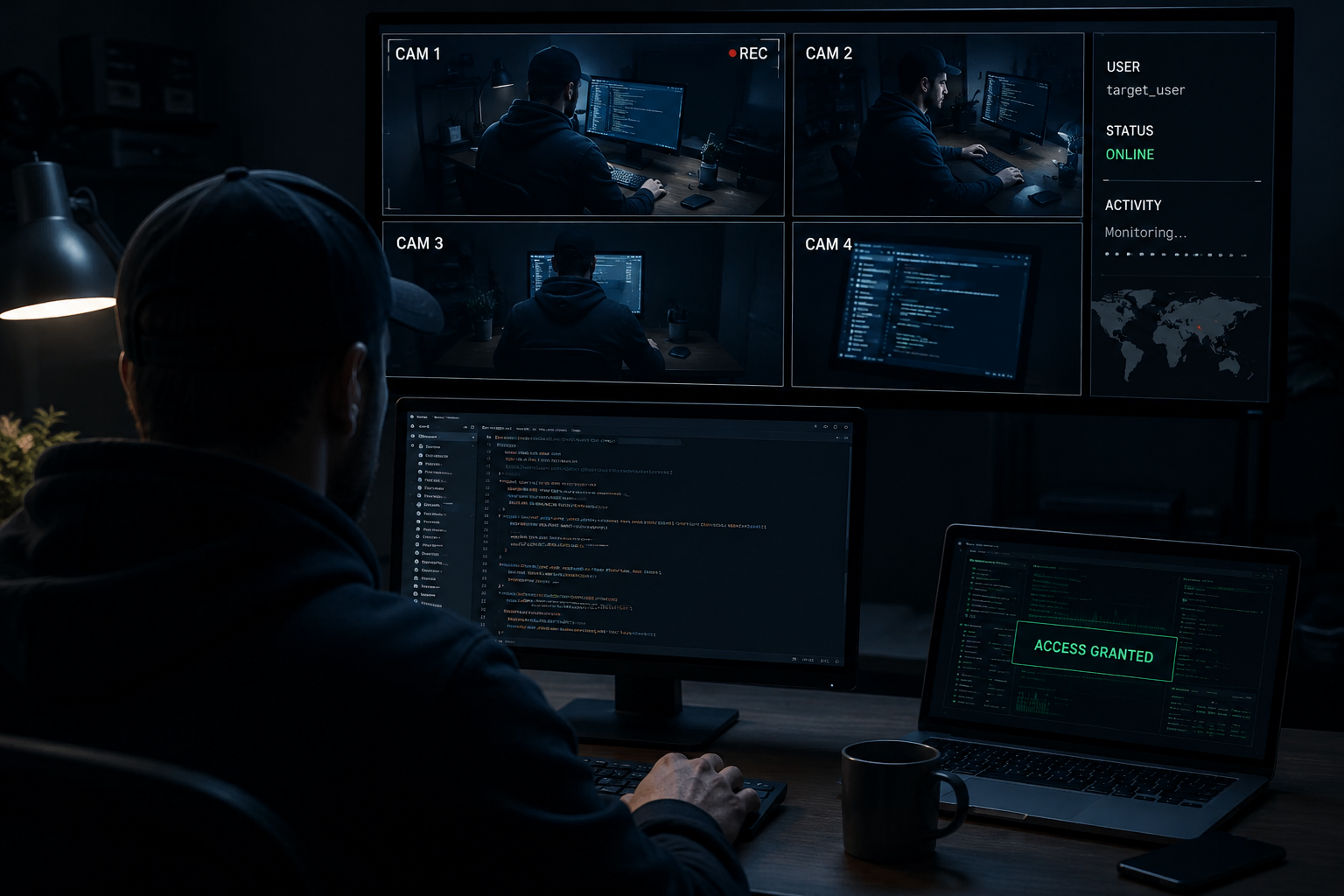
The Paranoid's Guide to Digital Privacy: Is Someone Monitoring My Computer?
Have you ever noticed your mouse cursor darting across the screen of its own accord, or felt a sudden draft of digital paranoia and wondered, is someone monitoring my computer? You aren't alone. In an era where work-from-home arrangements overlap with personal browsing, our workstations have become the primary battlegrounds for privacy. If your mouse cursor starts moving by itself, it's either a ghost with poor motor skills, or someone has remote access to your device. Statistically speaking, it's rarely the ghost.
For US business owners, entrepreneurs, and remote teams, unauthorized computer surveillance isn't just an invasion of privacy; it is a direct liability to your bottom line. An exposed computer is a gateway to proprietary databases, bank accounts, and customer lists. In this comprehensive guide, we will break down the telltale signs that someone is watching your digital moves, how they got there, and the practical steps to reclaim your workstation.
 Common Warning Signs of Computer Monitoring
Spyware and Remote Access Trojans (RATs) are designed to be invisible. They don't announce their arrival with banners or fanfares. Instead, they leave subtle breadcrumbs in your system's behavior that you can identify if you know where to look.
1. Unexplained System Slowdowns and Battery Drain
If your computer starts performing slower than a DMV queue on a rainy Friday afternoon, it might be doing heavy lifting in the background. Monitoring software requires CPU cycles and RAM to log keystrokes, capture screens, and transmit data back to a command server. On laptops, this constant background activity translates directly to sudden battery drain and heat generation, making your computer fan sound like a jet engine preparing for takeoff—though sadly without the airline mileage points.
Checking CPU Spikes
A sudden spike in resource consumption when your computer is idling is a primary red flag. When you are simply reading a static document, your CPU usage should remain in the low single digits. If it regularly hovers around 30% to 50% without any demanding applications open, something hidden is running in the background.
2. Strange Mouse Movements and Random Windows Opening
This is the most overt sign of a Remote Access Trojan (RAT). A remote operator can control your mouse, select files, open terminal windows, and even type commands. If you observe your cursor moving systematically toward menus or clicking buttons while your hands are off the trackpad, your session has been hijacked. This experience has all the charm and security of a screen-free window in a hurricane.
3. Webcam or Microphone Indicator Lights Turning On Unexpectedly
Modern laptops feature hardware-linked LED indicators next to the webcam. If this indicator light blinks or stays solid green or white when you aren't on a Zoom call or recording a video, a process is actively streaming your camera feed. Hackers use simple scripts to trigger the camera without your explicit consent, which is the cybersecurity equivalent of hiding your house key under a welcome mat that says "Please Don't Look Under Here."
Hardware Hijacks and the Phantom Camera
While some advanced malware can disable the camera's LED indicator programmatically on older hardware, most modern US laptops (like Apple MacBooks or Microsoft Surface lines) hardwire the LED directly to the camera's power rail. If the camera has power, the light turns on. Ignore any software pop-up telling you it is just a "system check"—trust the physical light.
Malware doesn't materialize out of thin air. It requires an entry vector, and unfortunately, human error remains the primary driver. Understanding how these packages end up on your workstation is the first step in prevention.
1. Phishing Emails and Malicious Attachments
Most spyware infections start with an email disguised as a shipping invoice, a tax document from the IRS, or a shared document link on Google Drive. Clicking the link or downloading the attachment executes a hidden script in the background. In corporate environments, targeting a specific executive with a customized phishing email (spearphishing) is the most common way hackers gain initial access to secure networks.
2. Bundled Software and Drive-By Downloads
Downloading software from third-party mirrors or downloading "free" utilities often bundles unwanted applications (PUAs) or spyware. Drive-by downloads go a step further, exploiting unpatched browser vulnerabilities to install malware silently when you visit a compromised website. Installing software from unverified pop-ups is like eating a sandwich you found on the subway platform—technically possible, but you will definitely regret the aftermath.
3. Physical Access (The Inside Threat)
If you leave your computer unlocked in a co-working space, coffee shop, or office, anyone can insert a USB rubber ducky or install a hardware keylogger in under 30 seconds. Hardware keyloggers are small adapters placed between the keyboard cable and the USB port, recording every keystroke physically. Always lock your screen (Win + L on Windows, Cmd + Ctrl + Q on Mac) when stepping away.
 Technical Steps to Detect Monitoring Software
If you suspect someone is monitoring your computer, you need to go beyond basic antivirus scans. Here are the step-by-step diagnostic workflows to identify hidden trackers and unauthorized remote sessions.
1. Check Active Network Connections
Monitoring software must transmit gathered data back to the monitor. This means there will be an active, outgoing network connection. You can list all active connections using built-in command-line tools.
On Windows (Command Prompt):
- Type
cmdin the Windows search bar, right-click Command Prompt, and select "Run as Administrator." - Type
netstat -anoand press Enter. This lists all active network connections, their local/foreign IP addresses, and their Process ID (PID). - Look for foreign IP addresses on unusual ports. You can run
tasklist /fi "pid eq [PID]"to identify the exact executable linked to that connection.
On macOS (Terminal):
- Open Terminal (Cmd + Space, type "Terminal").
- Type
sudo lsof -i -P -nand press Enter. Enter your admin password. - This command displays every active internet connection and the exact app or daemon responsible for it.
2. Inspect Startup Programs
Malware needs to survive system reboots. It does this by adding itself to the system's startup directory or plist files. Reviewing your startup registry will often reveal suspicious applications masquerading as system helpers.
Operating SystemDiagnostic ToolWhat to Look ForTypical Safe ItemsWindows 11Task Manager > Startup AppsUnverified publishers, strange alphanumeric names (e.g., "svch0st.exe" with a zero).OneDrive, Realtek Audio, Windows Security.macOSSystem Settings > General > Login ItemsUnfamiliar background services, "Allow in Background" items with generic icons.Adobe Creative Cloud, Dropbox, Google Updater.Both (Advanced)Sysinternals Autoruns (Win) / LaunchDaemons (Mac)Persistent services running from Temp directories or user profiles.Official drivers, verified security agents.
What to Do If Your Computer Is Being Monitored
If your diagnostics or antivirus scan confirms that spyware is present, you must act systematically. Panicking and hitting random keys is about as reassuring as a screen door on a submarine. Follow this containment protocol instead.
Step 1: Sever the Connection
Immediately disconnect your device from the internet. Disable Wi-Fi and unplug any ethernet cables. This cuts off the remote operator's connection and prevents the malware from uploading logged keystrokes, passwords, or files to their command server.
Step 2: Clean the Infection
Run a deep offline scan using verified security software. On Windows, you can use Windows Defender Offline scan, which reboots your system into a clean environment to delete stubborn rootkits before the operating system loads. On macOS, utilities like Malwarebytes can clean up PUPs and keyloggers. If you are dealing with a sophisticated target, the safest option is backing up your essential files and performing a clean factory reset.
Step 3: Revoke Access and Reset Credentials
Assuming your passwords have been logged, you must reset them. Do not change your passwords from the infected computer. Use a clean secondary device (like your phone) to change your email passwords, bank credentials, and work login accounts. Enable Multi-Factor Authentication (MFA) across all profiles immediately to render logged passwords useless to external parties.
Frequently Asked Questions
How can I tell if someone is monitoring my computer remotely?
The primary indicators include unexplained cursor movements, webcam indicator lights turning on, sudden system lag accompanied by high CPU usage, and unauthorized modifications to browser settings or search engines. Checking active network connections via netstat -ano (Windows) or lsof -i (macOS) will also highlight unauthorized outgoing data transfers.
Can someone spy on my computer if it is offline?
Yes. Spyware can log keystrokes, take screenshots, and save database values locally on your storage drive. Once the device reconnects to the internet, the malware will bundle the saved logs and transmit them to the remote server. Disconnecting the internet stops live surveillance, but does not wipe the logger.
Will a factory reset remove spyware and monitoring tools?
In almost all cases, yes. A clean install wipes the storage drive and reinstalls the operating system from a secure backup image. However, ensure you do not restore files from a system backup that contains the malware. Manually copy over only essential documents, images, and configuration settings.
How do I block remote access to my computer?
Disable built-in remote desktop features if you don't use them (e.g., Windows Remote Desktop, macOS Screen Sharing). Additionally, review your installed software list and uninstall tools like TeamViewer, AnyDesk, or LogMeIn unless they are explicitly required for your IT workflow. Keeping your operating system and web browser updated patches the security holes that remote tools exploit to bypass system permissions.
Secure Your Digital Infrastructure with DevTaastic
Protecting your personal workstation is critical, but securing your business website, web application, and corporate digital assets is where the stakes get high. At DevTaastic, we build secure, high-performance web applications and digital platforms engineered to protect client databases and safeguard business transactions. We follow modern security protocols, implement robust APIs, and design web services that keep hackers out.
Whether you need a custom React web application built with a secure Supabase backend, a clean corporate website, or an optimized local SEO strategy for the US market, our team delivers results that scale safely. Evaluate your digital infrastructure security, web development needs, or online marketing targets today.
Ready to upgrade your web presence with built-in security and premium design? We are from DevTaastic and let's discuss your next project.
To see how we implement these standards, browse our Automation Services and Contact DevTaastic.