How to Speed Up an Old Computer (Without Just Buying a New One)
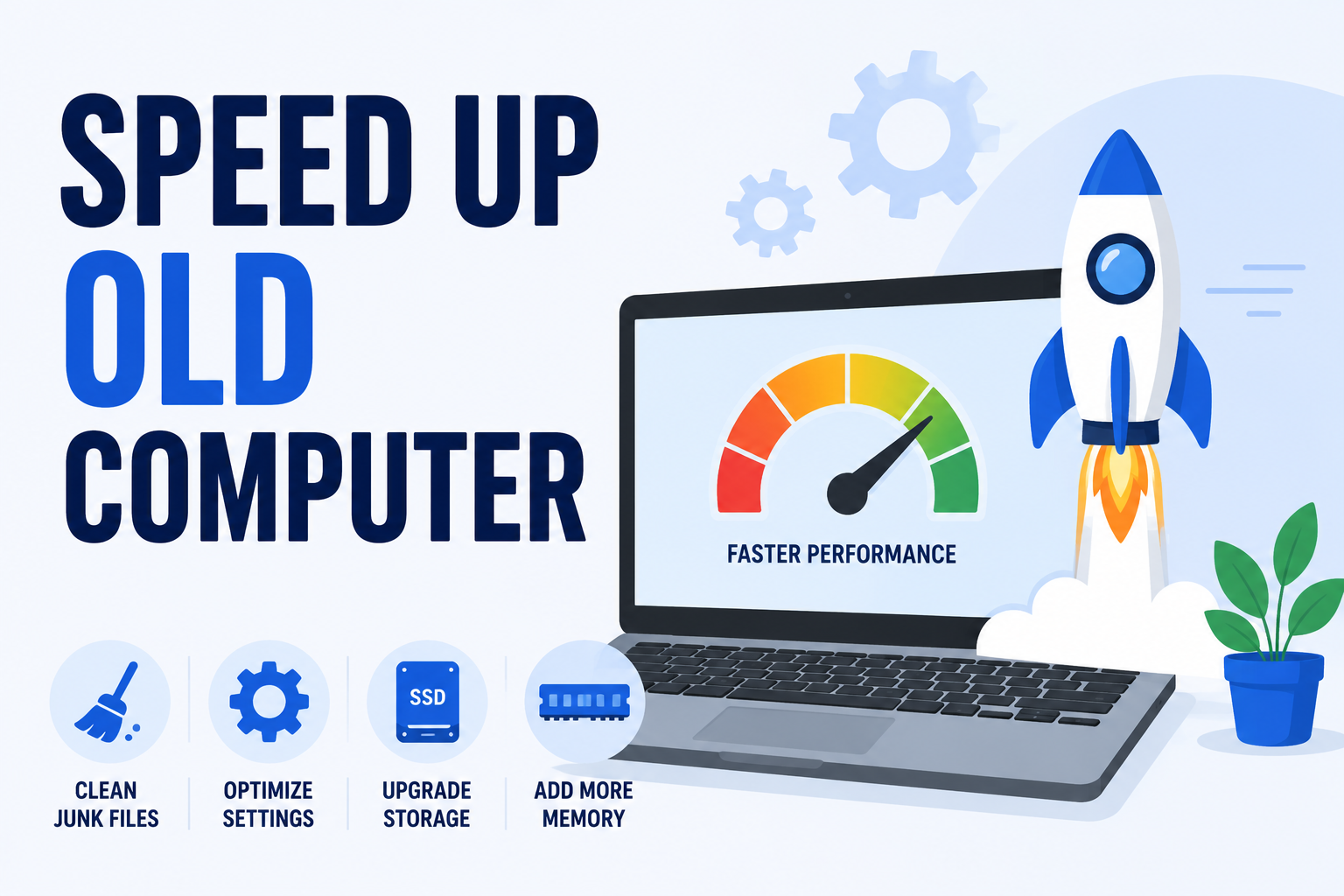
Every computer eventually reaches the age where opening a browser feels like a personal negotiation. If you're trying to figure out how to speed up an old computer, the good news is that "old" and "done" aren't the same thing — a surprising number of aging machines are held back by one or two specific, fixable bottlenecks rather than some irreversible decline into digital senility.
This guide focuses specifically on aging hardware — machines that are genuinely a few years old, not just cluttered with junk files. If your PC is relatively new but still sluggish, our general Windows speed-up guide covers the software-side fixes (startup programs, malware, disk cleanup) in more depth. Here, we're tackling the hardware question directly: what's actually worth upgrading, what isn't, and when it's genuinely time to let an old machine retire.

Why Old Computers Actually Slow Down
It's rarely one single culprit. Aging computers tend to slow down through a combination of factors that compound on each other quietly, until one day the whole thing feels like wading through wet cement.
Insufficient RAM for Modern Software
Software has gotten heavier every year, while a lot of older machines still ship with the same 4GB or 8GB of RAM they had on day one. Modern browsers alone can eat through several gigabytes with a handful of open tabs, leaving nothing left for anything else you're trying to run.
A Mechanical Hard Drive Instead of an SSD
If your computer is more than five or six years old, there's a good chance it's still running on a traditional spinning hard drive rather than a solid-state drive. Mechanical drives are dramatically slower at nearly everything — booting up, opening programs, saving files — and this single component is often responsible for more perceived slowness than an aging processor ever is.
Accumulated Dust and Thermal Throttling
Dust buildup inside an older machine restricts airflow, causing components to run hotter and throttle their own performance to avoid overheating. It's an unglamorous problem with a genuinely simple fix, and one that's easy to overlook because nothing about "my computer has dust in it" sounds like a performance issue.
An Aging Processor Genuinely Reaching Its Limits
Unlike RAM and storage, the processor is the one component that can't really be upgraded on most machines without replacing the motherboard entirely. If everything else checks out and performance still lags, the CPU itself may simply be outmatched by what modern software expects.

What Actually Helps: Ranked by Impact
Not every fix delivers equally. Here's what genuinely moves the needle on an old machine, roughly in order of impact for the effort involved.
1. Upgrade to an SSD
If your old computer is still running a mechanical hard drive, replacing it with a solid-state drive is, without much competition, the single most impactful upgrade available. Boot times, program launches, and general responsiveness improve dramatically — it's the closest thing to a genuine "new computer feeling" you can buy for a few hardware components and an afternoon.
2. Add More RAM
If your machine is stuck at 4GB, bumping up to 8GB or 16GB (if the motherboard supports it) meaningfully reduces the slowdowns caused by multitasking and modern, memory-hungry software. It's typically an inexpensive, straightforward upgrade that doesn't require replacing anything else.
3. Clean Out Dust and Check Cooling
A can of compressed air and twenty minutes of careful cleaning can resolve thermal throttling that's been quietly capping your performance for months. It's the cheapest fix on this list, and the one most people never think to try.
4. Reduce Startup Programs and Background Processes
Older machines are especially sensitive to bloated startup routines, since there's less processing headroom to absorb the overhead. Trimming what launches automatically frees up resources that matter more on aging hardware than they would on something newer.
5. Run a Malware and Adware Check
Older, less-monitored machines are frequently the ones carrying years of accumulated junk software nobody remembers installing. A proper scan sometimes reveals that "the computer is just old" was actually "the computer has been quietly running three unwanted background programs since 2022."

Hardware Upgrade Impact: Quick Reference
| Upgrade | Typical Cost | Performance Impact |
|---|---|---|
| SSD replacement | Low to moderate | Very high |
| RAM upgrade (4GB → 8–16GB) | Low | High |
| Dust cleaning / cooling check | Minimal | Moderate (if overheating was the issue) |
| CPU replacement | High (often requires new motherboard) | High, but rarely cost-effective on old systems |
| Full new computer | Highest | Highest, and includes future-proofing |
Upgrade or Replace? How to Decide
This is the question that actually matters more than any individual fix. Sinking money into an aging machine only makes sense up to a point, and that point is different for every computer.
- Upgrade if: the machine is under 6 years old, the CPU is otherwise adequate for your needs, and the slowdown traces back to RAM or storage rather than the processor itself.
- Upgrade if: the total upgrade cost is meaningfully less than a third of a new computer's price and addresses the actual bottleneck you've identified.
- Replace if: the machine no longer supports current security updates for its operating system, which is a genuine security risk regardless of how fast it feels.
- Replace if: upgrade costs start approaching half the price of a comparable new machine, since you're increasingly paying to extend the life of components that will still eventually need replacing anyway.
A helpful gut check: if you're upgrading a computer to make it merely tolerable rather than genuinely fast, that's usually a sign the math has stopped working in the upgrade's favor.
When to Call a Professional Instead of DIY
RAM and SSD upgrades are genuinely approachable for most people with basic instructions and a screwdriver. That said, a few situations call for professional hands rather than a YouTube tutorial and hope:
- You're not confident opening the case without risking damage to other components
- The machine is under warranty, and opening it yourself could void that coverage
- You want a full data migration to a new drive without losing anything in the process
- Multiple issues are stacked together and you're not sure which one is actually causing the slowdown
Diagnosing "why is this specific computer slow" is often faster and cheaper with an experienced set of eyes than it is guessing your way through upgrade after upgrade. Devtaastic's computer support team can pinpoint exactly which upgrade will actually fix your specific machine, rather than throwing parts at the problem and hoping one sticks.
Frequently Asked Questions
Is it worth upgrading a computer that's more than 8 years old?
Usually not, unless the machine is exceptionally well-built and the current bottleneck is clearly RAM or storage rather than the processor. Past a certain age, most components are approaching end of life simultaneously, making a full upgrade less cost-effective than replacement.
Will more RAM actually make a noticeable difference?
Yes, especially if your machine is currently running with 4GB or less. Moving to 8GB or 16GB typically produces a very noticeable improvement in multitasking and general responsiveness, since insufficient RAM is one of the most common bottlenecks on older machines.
Can I upgrade the RAM and SSD myself?
In most desktop computers and many laptops, yes — both are commonly accessible, tool-light upgrades. Some ultra-thin laptops solder RAM directly to the motherboard, making upgrades impossible, so it's worth checking your specific model before purchasing parts.
How do I know if my slowdown is hardware or software related?
If a fresh restart and a malware scan don't meaningfully help, and Task Manager shows high resource usage even with few programs open, the issue is more likely hardware-related. If specific programs or startup routines seem to be the trigger, software is the more likely cause.
Is a hardware upgrade cheaper than professional cleanup and maintenance?
It depends on what's actually wrong. If the bottleneck is genuinely hardware (an old mechanical drive, insufficient RAM), upgrading is usually the better investment. If the issue is software clutter, malware, or thermal buildup, a maintenance visit may resolve it for less than a hardware purchase would.
Get a Real Diagnosis Before You Spend a Dollar
Before buying parts, running a new computer purchase through your head, or resigning yourself to another year of slow boot times, it's worth finding out exactly what's actually holding your machine back. Devtaastic's computer support team can diagnose your specific bottleneck and tell you honestly whether an upgrade or a replacement makes more sense for your situation.
Get a free quote today and let's find out what your old computer actually needs. Request your free quote and stop guessing which part to blame.