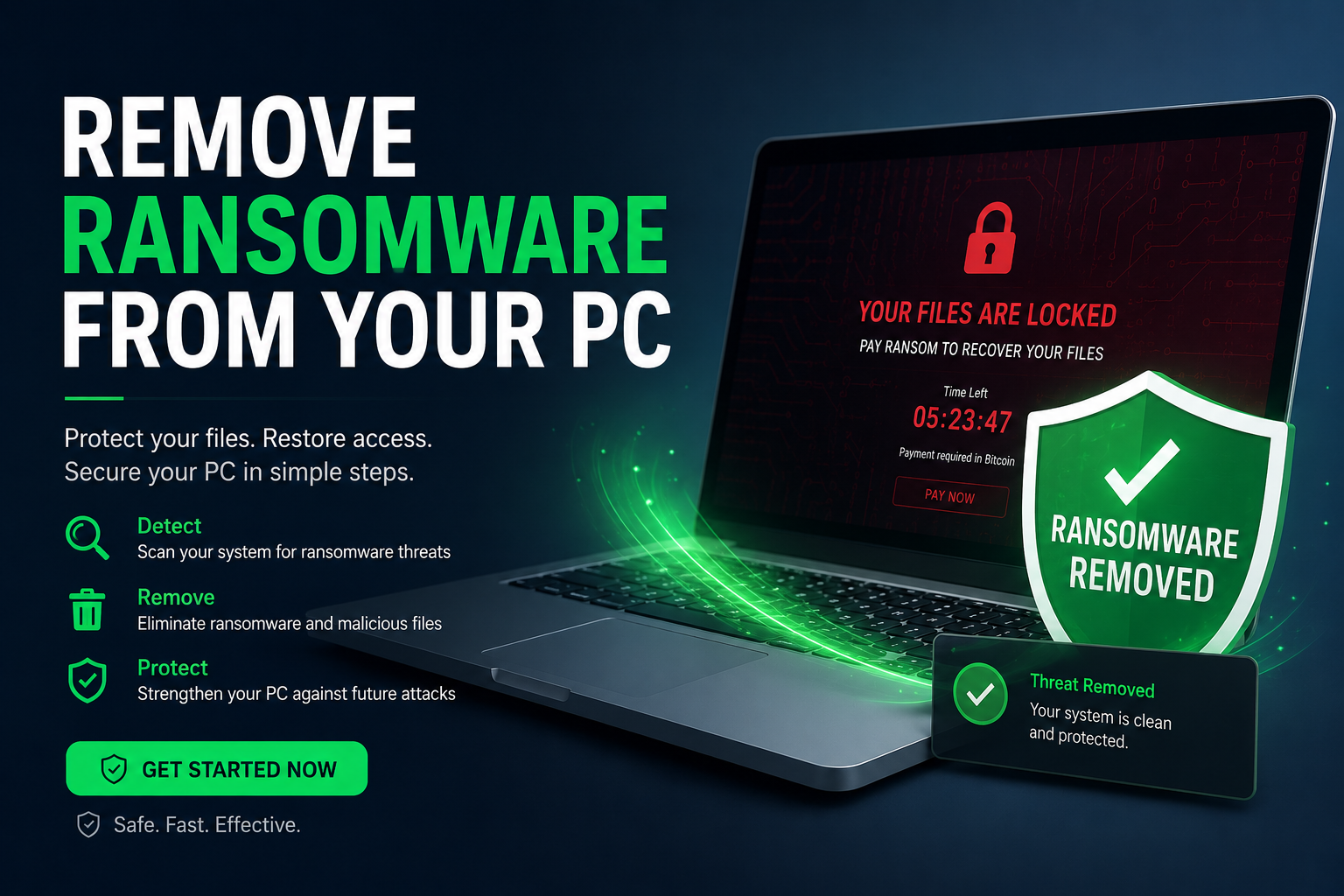
If you're reading this because ransomware is on your screen right now demanding payment, the first thing to know is: do not pay, do not panic, and do not turn off your PC yet. Learning how to remove ransomware from your PC is possible in most cases — and even when the malware itself is gone, your files may be recoverable through backups, Windows shadow copies, or free decryption tools. This guide walks you through the exact steps in the right order, from initial containment to running DT Malware Safe, to restoring your data. The sequence matters. Skipping ahead tends to make things worse.
What Ransomware Actually Does to Your PC

Ransomware is malware that encrypts your files and demands payment — typically in cryptocurrency — in exchange for a decryption key. Modern ransomware variants are sophisticated enough that the encryption itself is mathematically unbreakable without the correct key, which is exactly why the attackers feel confident demanding money. What they're less likely to advertise is that paying doesn't reliably get your files back, that the FBI and CISA both formally advise against it, and that roughly 80% of businesses that pay get hit again within the year. Criminals, it turns out, have good customer retention.
Beyond file encryption, ransomware commonly does several other things in parallel: it attempts to delete Windows Shadow Copy backups (specifically to eliminate your easiest recovery option), it may spread laterally across a network if you're on one, and it often installs additional payloads — keyloggers, backdoors — that persist even after the visible ransomware is removed. This is why removal needs to be thorough, not just skin-deep.
Common Ransomware Entry Points in 2026
| Entry Vector | How It Arrives | US Prevalence |
|---|---|---|
| Phishing Email | Malicious attachment or link in a convincing email | ~60% of attacks |
| RDP Exploitation | Brute-forced Remote Desktop Protocol credentials | Common in SMBs |
| Malicious Downloads | Cracked software, fake installers, drive-by downloads | High in home users |
| Unpatched Vulnerabilities | Exploit kits targeting outdated Windows or software | Growing rapidly |
| Malvertising | Infected ads on legitimate websites triggering downloads | Increasingly common |
Step-by-Step: How to Remove Ransomware from Windows 10 & 11

Step 1 — Isolate the Machine Immediately
Before anything else, disconnect from the internet. Unplug the ethernet cable and turn off Wi-Fi. If you're on a business network, disconnect from it entirely — ransomware spreads laterally with enthusiasm, and your colleagues' machines are not improved by the experience. Do not shut down the PC yet; some ransomware variants store encryption keys in memory that can be recovered with the right forensic tools, and you don't want to lose that window before you've assessed the situation.
⚡ First 5 Minutes — Do This Now
- Unplug ethernet / disable Wi-Fi
- Disconnect any external drives or USB devices
- Take a photo of the ransom note screen with your phone
- Do NOT pay, do NOT click anything in the ransom note
- Do NOT shut down the PC yet
Step 2 — Identify the Ransomware Variant
From a separate, clean device, visit nomoreransom.org — the No More Ransom project, a joint initiative by Europol, the FBI, and cybersecurity firms. Upload a sample of the ransom note or an encrypted file to ID Ransomware. It will identify the specific strain and, critically, tell you whether a free decryptor already exists. For well-known variants like WannaCry, Ryuk, or STOP/Djvu, decryptors are available. For newer or custom strains, they may not be — but you won't know until you check, and this step costs nothing except five minutes.
Step 3 — Boot Into Safe Mode with Networking
Booting into Safe Mode prevents the ransomware from loading at startup, which makes scanning and removal significantly more effective. On Windows 10 and 11:
How to Boot Into Safe Mode (Windows 10 & 11)
- Hold Shift and click Restart from the Start menu
- Go to Troubleshoot → Advanced Options → Startup Settings
- Click Restart, then press F5 to select Safe Mode with Networking
- Windows will reboot into Safe Mode — you'll see "Safe Mode" in the screen corners
Step 4 — Run DT Malware Safe
Once in Safe Mode, reconnect briefly to the internet to download and run DT Malware Safe — Devtaastic's dedicated malware scanner built specifically to detect and remove the full spectrum of threats that standard antivirus engines miss, including ransomware payloads, residual trojans, and secondary infections left behind after the primary ransomware executes. Run a full system scan, not a quick scan. Quick scans are optimistic by design; a full scan is thorough by necessity. Quarantine everything DT Malware Safe flags, then disconnect from the internet again before proceeding.
DT Malware Safe is particularly effective at catching the secondary payloads ransomware commonly drops — keyloggers and backdoors that persist even after the visible ransomware is removed and that your regular antivirus may not flag. After the full scan completes cleanly, run Windows Defender's full scan as a second pass. Two scanners with different engines catching nothing is more reassuring than one.
Step 5 — Attempt File Recovery
With the ransomware removed, turn your attention to your files. Work through these recovery options in order:
📁 File Recovery Options — Try in This Order
- Backups — External drive, cloud backup (OneDrive, Google Drive, Backblaze), or NAS. This is the fastest and cleanest recovery path.
- Free decryptors — Check nomoreransom.org for your specific variant. Many common strains have published decryption keys.
- Windows Shadow Copies — Right-click an encrypted file → Properties → Previous Versions. Many ransomware variants delete shadow copies, but not all succeed.
- File recovery software — Tools like Recuva can sometimes recover unencrypted versions from disk if they weren't overwritten.
- Professional data recovery — For critical data with no other recovery path, a professional service is worth exploring.
If you don't have a backup and none of the above works, the honest answer is that your files may be unrecoverable without the decryption key. This is the part of ransomware that isn't fixable with a guide — which is why the backup guide exists and why setting one up after this incident is non-negotiable.
Step 6 — Clean Up and Harden After Removal
Once you've recovered what you can and confirmed the system is clean, don't just go back to normal. The same configuration that let ransomware in once will let it in again, and ransomware operators specifically re-target machines they've already compromised successfully.

✅ Post-Removal Security Checklist
- Run Windows Update immediately — patch every pending update
- Change passwords for all accounts accessed from this machine, starting with email and banking
- Check browser extensions for anything unfamiliar and remove it
- Enable Windows Defender real-time protection if it was disabled
- Set up DT Malware Safe for scheduled weekly scans going forward
- Enable automatic Windows backups or set up a third-party backup solution
- If on a business network — audit other machines for signs of lateral spread
- Report the incident to the FBI's IC3 at ic3.gov (recommended for US users)
A slow PC after a ransomware cleanup isn't unusual — the infection often leaves behind registry bloat and startup entries even after the malware is removed. Check our guide to speeding up a slow Windows PC once you're through the security work. Similarly, if you're seeing Blue Screen errors post-cleanup, ransomware can corrupt system files that persist after removal — the BSOD troubleshooting guide covers the most common causes.
Should You Pay the Ransom?
No. The FBI, CISA, and every credible cybersecurity organization in the US advise against it. Beyond the ethical problem of funding criminal enterprises, the practical track record is poor: a significant percentage of victims who pay never receive a working decryption key, receive one that only partially decrypts files, or get hit again shortly after. Payment also confirms to the attackers that your address is a paying one, which has a way of circulating. Exhaust every recovery option — backups, decryptors, shadow copies, professional recovery — before even considering it. And if you're a business, consult legal counsel before making any payment decision, since certain ransomware groups are sanctioned entities and payment carries its own legal risk.
When DIY Removal Isn't Enough
DT Malware Safe and the steps above resolve the majority of consumer ransomware infections. There are situations where professional intervention is the faster, lower-risk path:
- The ransomware has spread to multiple machines on a network
- Scans keep finding and re-removing the same threats (persistent rootkit involvement)
- Critical business data is encrypted with no viable backup
- System behavior is severely degraded even after a clean scan result
- You're unsure whether the machine is fully clean before reconnecting to a business network
In these cases, professional computer support is the right call — not because the tools are unavailable to you, but because ransomware forensics and network-level containment require experience that a clean scan result alone can't substitute for. Our maintenance and support service covers ransomware removal, security hardening, and follow-up monitoring remotely for most Windows cases, without the overhead of an on-site visit.
If you're unsure whether your machine is fully clean, our guide to virus warning signs covers the behavioral indicators that suggest something is still active — because sometimes the most dangerous part of a ransomware infection is the payload it left behind that isn't putting a ransom note on your screen.
Frequently Asked Questions
Can ransomware be completely removed from a PC?
Yes — in most cases the ransomware executable and its associated payloads can be fully removed using a dedicated tool like DT Malware Safe. The harder problem is your encrypted files. Removal eliminates the malware but does not decrypt your data. Recovery depends on whether you have backups, whether a free decryptor exists for your specific variant, or whether professional assistance can assist with partial recovery.
Should I pay the ransom?
The FBI and CISA both formally advise against it. Payment does not guarantee decryption, directly funds criminal operations, and frequently marks you as a repeat target. Exhaust backup recovery and free decryptor tools from nomoreransom.org before considering payment. If you're a business, consult legal counsel — some ransomware groups are sanctioned entities and payment carries legal risk.
How do I know what ransomware variant I have?
Upload a sample of your ransom note or an encrypted file to ID Ransomware at nomoreransom.org. It identifies the specific strain and tells you whether a free decryptor is available. This is one of the most useful first steps and costs nothing but a few minutes on a separate clean device.
Will a factory reset remove ransomware?
A full Windows reset removing all files will eliminate the ransomware from the operating system. It will not recover your encrypted files — it simply removes the malware. Always try backup recovery and free decryptor options before resetting, since a reset is permanent and removes everything on the drive.
How do I prevent ransomware in the future?
Three measures cover the vast majority of risk: maintaining regular offline or cloud backups so encryption doesn't mean permanent loss, keeping Windows and all software fully updated, and running DT Malware Safe on a scheduled basis to catch threats before they execute. Avoiding suspicious email attachments and unverified downloads eliminates most entry vectors — which is advice that sounds obvious until the phishing email arrives looking exactly like your bank.
Dealing With a Ransomware Attack Right Now?
Our team handles ransomware removal, security hardening, and data recovery remotely — fast, without panic, and without upselling you things you don't need. Get a free diagnostic and let us assess the damage first.
Get a Free Diagnostic → View Computer Support Services