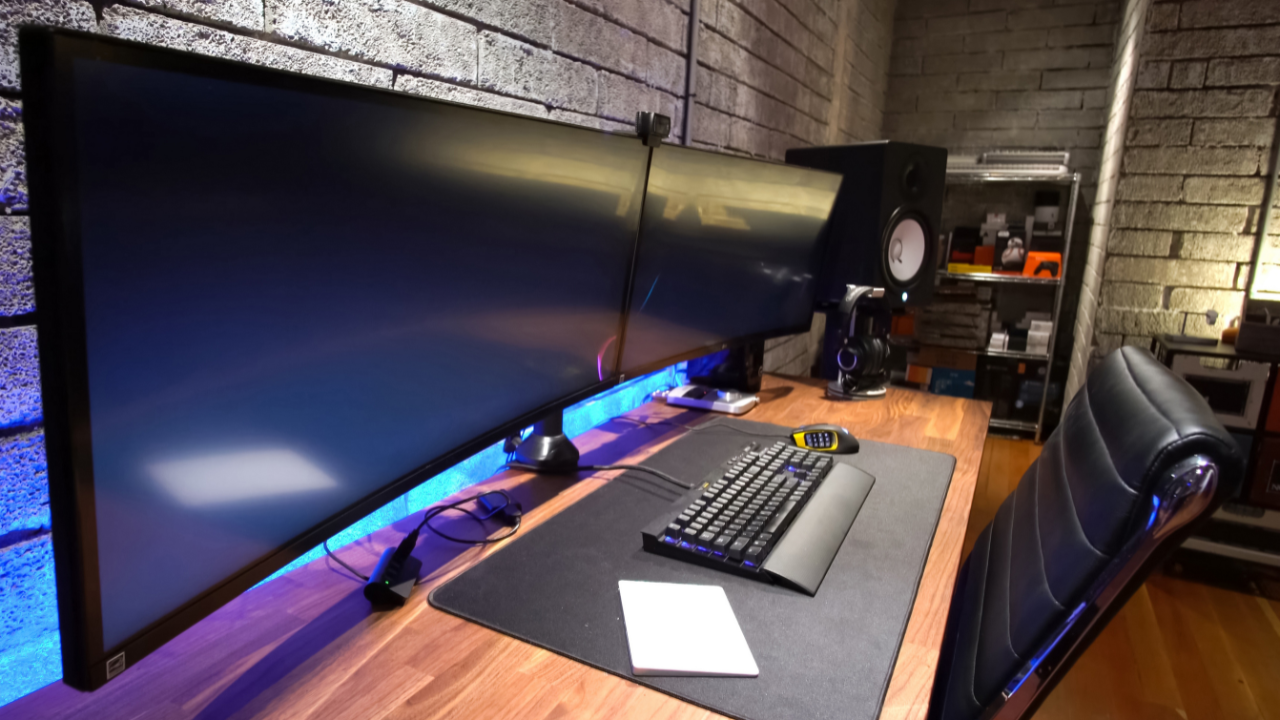
A second monitor is one of the highest-return productivity upgrades available for almost any computer — research consistently puts the productivity gain from a dual monitor setup at 20–50% for knowledge workers, which is a remarkable number for something that costs nothing to configure once the hardware is in place. Setting up two monitors on a Windows PC is straightforward in most cases: connect the cables, press Win + P, select Extend, done. The complication is usually getting there — understanding which ports and cables to use, why the second screen shows nothing, or how to configure the layout so windows open in the right place. This guide covers all of it.
Before you start: check your ports
The first step is matching the available video output ports on your PC with the input ports on your monitors. Most PCs have at least two video outputs — commonly a mix of HDMI, DisplayPort, and possibly USB-C. Most monitors have HDMI as a minimum; newer monitors increasingly include DisplayPort as well.
| Port type | What it looks like | Best for | Notes |
|---|---|---|---|
| HDMI | Trapezoid shape, similar to USB but thicker | Most setups — universal compatibility | Most common on PCs and monitors. HDMI 2.1 supports 4K@144Hz. Most cables are interchangeable for typical office use. |
| DisplayPort | Rectangular with one angled corner | Higher refresh rates, daisy-chaining | Preferred for gaming or high-refresh monitors. Supports DisplayPort MST for daisy-chaining two monitors from one port. |
| USB-C / Thunderbolt | Small oval connector | Laptops, modern ultrabooks | Not all USB-C ports carry video signal — check your device's specs. Thunderbolt 4 supports two 4K displays from a single port. |
| VGA | 15-pin trapezoid (usually blue) | Older monitors only | Analog signal, no higher than 1080p cleanly. Use only if no digital option is available on an older monitor. |
| DVI | Wide rectangular with pins | Older monitors | Digital but older standard. DVI-D (digital) is preferable to DVI-I if available. |
If your PC has DisplayPort and your monitor only has HDMI — or vice versa — a passive adapter cable (DisplayPort to HDMI, or HDMI to DisplayPort) solves the mismatch for under $15. Verify the adapter supports your target resolution before purchasing; cheap adapters sometimes cap at 1080p even on 4K-capable ports.
Step 1: Connect the cables
Plug in both monitors before turning anything on
- Identify the video output ports on the back (desktop) or side (laptop) of your PC. Most desktops have ports on the graphics card — look for the ports on the angled panel at the back, not the motherboard ports above them. If you have a dedicated graphics card, use its ports exclusively; using motherboard video ports simultaneously with a GPU can cause detection issues.
- Check what input ports your second monitor has. Look on the back of the monitor — usually HDMI, DisplayPort, or VGA. Note which inputs are available.
- Connect the first monitor if not already connected — typically to the primary port (HDMI or DisplayPort).
- Connect the second monitor to the second available output port using the appropriate cable or adapter.
- Power both monitors on. Make sure each monitor is set to the correct input source — use the monitor's own menu buttons (usually on the bottom or right side of the bezel) to select the input that matches the cable you used.
- Turn on the PC. Windows should detect both displays automatically during boot.
Step 2: Choose your display mode
Press Windows + P to select how the two screens work together
The fastest way to configure your display mode is Win + P, which opens the Project panel on the right side of the screen. Four options appear:
Extend ✓ Recommended
Spreads your desktop across both screens. Move windows and drag content freely between them. Each monitor shows different content.
Duplicate
Both screens show the same image simultaneously. Good for presentations or showing content to someone else.
PC screen only
Only the primary monitor is active. Second screen is blank even if connected.
Second screen only
Primary monitor is disabled, second monitor only. Useful for laptop setups with lid closed.
Select Extend for a productivity dual monitor setup. The second monitor becomes additional desktop space — drag windows to it, keep a browser open on one screen while working in another application on the other.
Step 3: Arrange the monitors and configure display settings
Tell Windows where each monitor physically sits on your desk
Right-click the desktop and select Display settings (or go to Settings > System > Display). You will see numbered boxes representing each monitor. Drag the boxes to match the physical arrangement of your monitors — if your second monitor is to the right of the first, drag box 2 to the right of box 1. Click Apply to save.
This arrangement determines how the mouse cursor moves between screens and which edge of each monitor connects to the other. Getting it wrong means your cursor appears to jump or disappear when moving between screens — fixing the layout in Display settings resolves this immediately.
Set your primary display
The primary display is where the taskbar, Start menu, and new windows appear by default. Click on the monitor you want as primary in Display settings, scroll down, and check Make this my main display.
Set resolution and refresh rate per monitor
Click each monitor in Display settings and set the Display resolution to the recommended resolution for that specific monitor (shown in parentheses next to each option). If the two monitors have different native resolutions — a common situation when adding an older second monitor — set each independently. Also check Advanced display to verify the refresh rate matches what your monitor supports; Windows sometimes defaults to 60 Hz even on monitors capable of 144 Hz.
Scale and text size
If the two monitors have different sizes or pixel densities, set the Scale percentage independently for each. A 27-inch 4K monitor next to a 24-inch 1080p monitor will likely need different scale settings — the 4K display at 200% scale and the 1080p at 100% produces a more consistent visual size between the two screens.
In Display settings under Multiple displays, enable Remember window locations based on monitor connection. When you disconnect and reconnect the second monitor — such as a laptop you take away and bring back to your desk — Windows restores all your windows to their previous positions on each screen rather than dumping everything onto the primary monitor.
Laptop setups: how to connect two monitors
Laptops are more constrained than desktops because they typically have fewer video output ports. Most laptops support one external monitor through a direct connection. For two external monitors, the usual options are:
| Method | What you need | Best for |
|---|---|---|
| USB-C / Thunderbolt docking station | Compatible dock with multiple video outputs | The most versatile solution — one cable from dock to laptop, multiple monitors and peripherals from the dock |
| Thunderbolt 4 daisy-chain | Two compatible monitors + Thunderbolt 4 port | Laptops with Thunderbolt 4 — can run two 4K displays natively from one port |
| DisplayPort MST hub | MST hub + DisplayPort on laptop | Laptops with DisplayPort — splits one DP signal to two monitors |
| USB-A to HDMI adapter | USB display adapter | Adding one more monitor when other ports are used; limited to office tasks — not suited for gaming or video |
Many laptops have multiple USB-C ports but only one or two support video output. Check your laptop's specifications document — the port that supports video is usually marked with a Thunderbolt icon (lightning bolt) or a DisplayPort symbol, or listed explicitly in the spec sheet as supporting DisplayPort Alt Mode. Plugging into the wrong USB-C port produces no display output and no error.
Using only GPU ports (desktop PCs)
On a desktop PC with a dedicated graphics card, connect both monitors to the GPU — the card that occupies a PCIe slot and has ports accessible from the angled panel at the bottom-rear of the PC. Do not mix one monitor on the GPU and one on the motherboard's video output. When a dedicated GPU is present, Windows typically disables the motherboard video entirely, so the motherboard port will show nothing regardless. Even if it does show output, mixing GPU and motherboard video often causes display issues, stuttering, and reduced performance.
DisplayPort daisy-chaining
If your monitors support DisplayPort Multi-Stream Transport (MST), you can connect the second monitor to the first rather than running two cables back to the PC. Connect the PC to the first monitor via DisplayPort. Connect the first monitor's DisplayPort Out to the second monitor's DisplayPort In. Enable MST in the first monitor's on-screen display (OSD) menu — the setting is usually called MST or DP Multi-Stream. The second monitor should appear as a separate display in Windows Display settings. The last monitor in the chain should have MST set to Off.
Troubleshooting: second monitor not showing up
Useful keyboard shortcuts for dual monitor setups
| Shortcut | What it does |
|---|---|
| Win + P | Open Project panel — switch between PC only, Duplicate, Extend, Second screen only |
| Win + Shift + → | Move active window to the monitor on the right |
| Win + Shift + ← | Move active window to the monitor on the left |
| Win + ← / → | Snap current window to left or right half of the current monitor |
| Win + Up | Maximise window on the current monitor |
| Win + D | Show desktop on all monitors |
| Win + Tab | Task view — shows all open windows across all monitors |
If you are running into a driver or detection issue that the standard fixes above have not resolved, our remote computer support team can diagnose and fix display configuration problems without requiring you to bring your PC anywhere. We work with customers in New Jersey, New York, California, Texas, and Florida. Our maintenance support plan includes driver management and display configuration as part of the regular upkeep service.
Frequently asked questions
How do I connect two monitors to a PC?
Connect each monitor to a separate video output port on your PC (HDMI, DisplayPort, or USB-C), power both on, and turn on the PC. Windows will detect both automatically. If not, right-click the desktop > Display settings > Multiple displays > Detect. Press Win + P and select Extend to use both as separate workspaces.
What cables do I need for dual monitors?
HDMI is the most common and universally compatible choice. DisplayPort offers higher refresh rates and supports daisy-chaining. USB-C supports video on many modern laptops. If ports don't match between your PC and monitor, a passive adapter cable (DisplayPort to HDMI, etc.) solves the mismatch for under $15.
Why is my second monitor not detected by Windows?
Most common causes: cable not fully seated, monitor set to wrong input source, Windows needs a manual Detect (right-click desktop > Display settings > Multiple displays > Detect), or an outdated graphics driver. Press Win + P and select Extend to force Windows to activate the second display. Try a different cable and port if the problem persists.
Can a laptop run two external monitors?
Most laptops support one external monitor directly. For two external monitors, use a USB-C or Thunderbolt docking station with multiple video outputs, a DisplayPort MST hub, or a laptop with Thunderbolt 4 which can run two displays natively. Check your laptop's specifications for the maximum supported number of external displays before purchasing hardware.
What is the difference between Extend and Duplicate display modes?
Extend spreads your desktop across both monitors as one large workspace — different content on each screen, ideal for productivity. Duplicate shows the same image on both screens simultaneously — useful for presentations. Switch between modes instantly with Win + P.
Second monitor still not working?
Driver issues, port compatibility problems, and display configuration errors are straightforward for our remote support team to diagnose and fix — usually in under an hour, without bringing your PC anywhere.
Get remote display support from Devtaastic