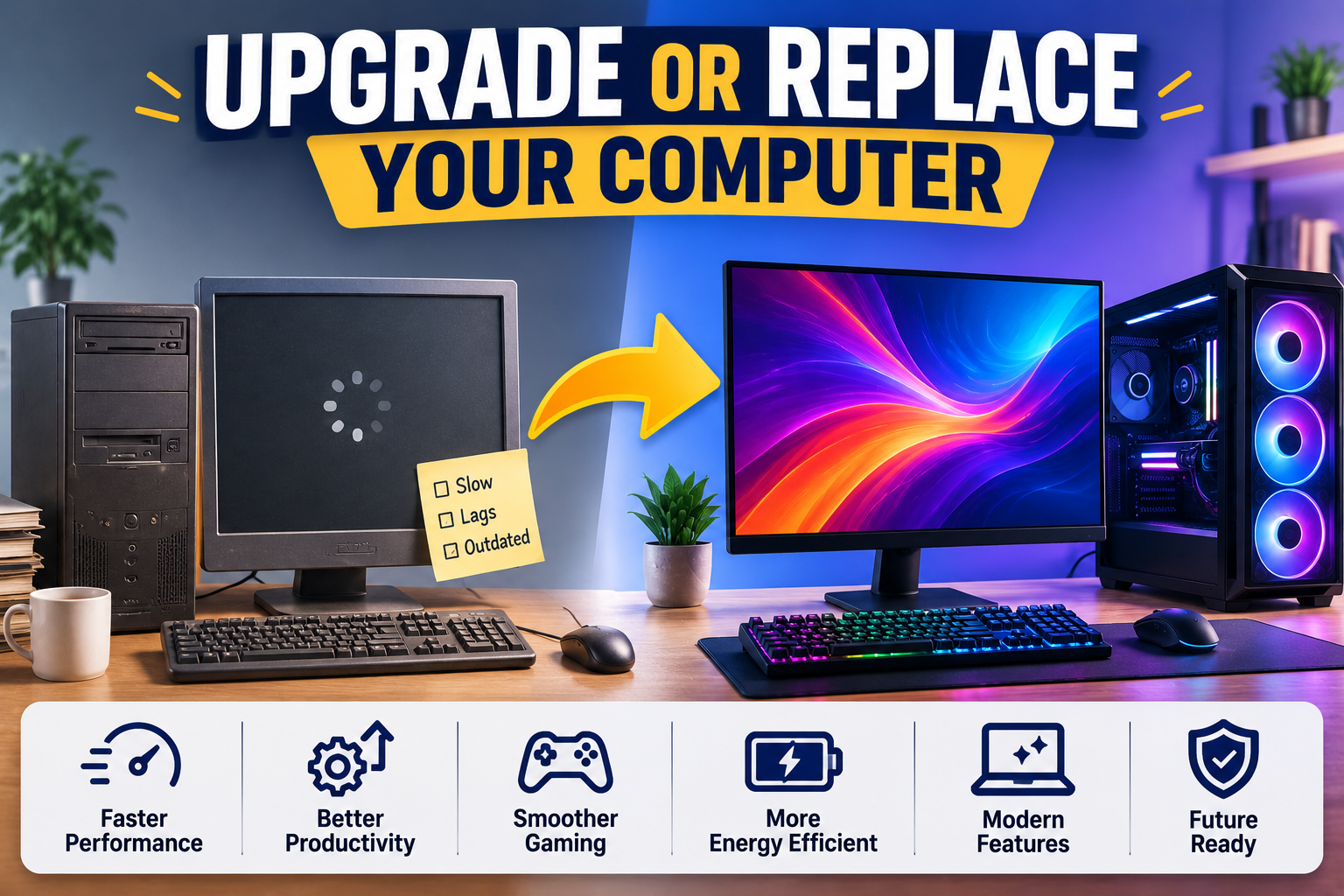
If your computer has started taking coffee breaks longer than yours, you've probably faced the question every IT person fields at least once a week: should you upgrade your computer or replace it? It's a fair question, and the honest answer — "it depends" — satisfies absolutely no one. So let's break down the actual math instead.
We're talking real numbers: what a RAM upgrade costs versus what a new machine runs you, when a $150 fix buys you three more years, and when you're just feeding a dying machine one part at a time like a very expensive, very slow IV drip.
At Devtaastic, we get this call from small business owners, remote workers, and everyday users across the US almost daily. Some just need a memory upgrade. Others are trying to resuscitate a machine that's already flatlined. This guide gives you the actual cost breakdown — hardware upgrade prices, repair costs, and new-computer price tags — so you can make the call with numbers instead of gut feeling.

The Real Cost of Upgrading Your Computer
Upgrading is the automotive equivalent of replacing a transmission instead of buying a new car — sometimes it's the smart move, and sometimes you're just delaying the inevitable at a markup. Here's what the individual upgrade paths actually cost in 2026, and what they actually fix.
RAM Upgrades
RAM is the cheapest, highest-return upgrade you can make on an otherwise healthy machine. If your computer chokes when you have twelve browser tabs open (we don't judge, we've all been there), more memory is usually the fix.
- 8GB to 16GB: $30–$60 for most laptops and desktops
- 16GB to 32GB: $60–$120 depending on RAM type (DDR4 vs DDR5)
- Labor (if not DIY): $40–$80 for a remote-guided or in-person install
Some ultra-thin laptops solder RAM directly to the motherboard, meaning "upgrade" isn't even on the menu — in which case you're stuck reading the rest of this article whether you like it or not.
Storage Upgrades (HDD to SSD)
If your computer takes longer to boot than it takes you to make coffee, swapping a spinning hard drive for a solid-state drive is often the single biggest speed improvement available for the money.
- 500GB SATA SSD: $35–$55
- 1TB NVMe SSD: $60–$100
- Data migration + labor: $50–$100
Battery Replacement (Laptops)
A laptop battery that dies faster than a New Year's resolution is a solvable problem, and usually a cheap one.
- Standard laptop battery: $40–$90 (parts)
- Labor: $30–$60
Graphics Card / GPU Upgrade (Desktops Only)
This one's mostly for gamers, video editors, and anyone doing serious design work. It's also the upgrade path that gets expensive fastest.
- Entry-level GPU: $200–$350
- Mid-range GPU: $350–$700
- Compatibility check + install: $50–$100 (power supply and case size matter more than people expect)

The Real Cost of Replacing Your Computer
Buying new resets the clock, but it doesn't reset your budget. Here's what a realistic 2026 purchase looks like across the board, because "just get a new one" is easy advice from someone who isn't the one paying for it.
| Computer Type | Budget Tier | Typical Price Range | Best For |
|---|---|---|---|
| Chromebook / Basic Laptop | Entry | $250–$450 | Web browsing, email, light document work |
| Mid-Range Laptop | Standard | $600–$1,000 | General business use, multitasking, video calls |
| Business Laptop (Dell/HP/Lenovo) | Professional | $900–$1,600 | Small business owners, remote workers, road warriors |
| MacBook Air/Pro | Premium | $999–$2,499 | Creative work, Apple ecosystem users |
| Custom/Gaming Desktop | Performance | $1,200–$3,000+ | Design, video editing, gaming, heavy multitasking |
None of those numbers include setup time, data transfer, software reinstalls, or the mild grief of losing your perfectly arranged desktop icons. That work has real value, and it's exactly the kind of thing a managed computer support plan handles so you don't spend a Saturday doing IT archaeology on your own machine.
Upgrade vs. Replace: A Side-by-Side Comparison
Here's the decision laid out plainly, because nobody wants to read 2,000 words just to still be undecided at the end.
| Factor | Upgrade Makes Sense | Replace Makes Sense |
|---|---|---|
| Age of computer | Under 4 years old | 5+ years old |
| Current performance | Slow but functional | Frequent crashes, overheating, won't boot reliably |
| Repair/upgrade cost | Under 30–40% of new-computer price | Approaching 50%+ of new-computer price |
| OS support | Still receiving updates | OS end-of-life or unsupported |
| Battery/hardware health | One component failing | Multiple components failing |
| Software needs | Needs stay the same | New software demands more power than hardware allows |
The 50% Rule
Here's a rule of thumb that holds up across most of the machines we service: if repairing or upgrading a computer costs more than 50% of what a comparable new one costs, replace it. Below that threshold, upgrading usually wins on value. If you're right at the 50% line, that's less a rule and more a coin flip — so factor in age and how many other parts are already showing wear.
The Compounding Repair Trap
This is the one that catches people. A $90 battery fix seems reasonable. Then the fan starts grinding two months later — another $70. Then the SSD starts throwing errors — another $90. Individually, every repair looks justifiable. Added up, you've spent $250 on a machine that's still running a five-year-old processor, which is a bit like renovating a house you're about to demolish. At that point you're not maintaining a computer, you're subsidizing its retirement party.

Signs You Should Upgrade, Not Replace
- The computer is under four years old and otherwise reliable
- Only one component is causing the slowdown (usually RAM or storage)
- The operating system still receives security updates
- You like the machine's screen, keyboard, and build quality — you just need it faster
- Total upgrade cost is under 40% of a comparable new computer
Signs You Should Replace, Not Upgrade
- The computer is five or more years old
- Multiple hardware components have already failed or are failing
- The operating system no longer receives security updates — an unpatched OS is an open invitation for malware and security threats
- The motherboard, CPU, or display itself is the bottleneck (these usually aren't cost-effective to replace)
- You've already sunk repair money into it more than once in the past year
What About Just Cleaning Up the Software First?
Before you spend a dollar on hardware, rule out software slowdown. A computer bogged down by bloatware, malware, or a stuffed hard drive can feel like it needs a funeral when it actually just needs a deep clean. We've walked through the full process in our guide on how to speed up a slow Windows PC. And if you suspect something more sinister is running in the background, our DT Malware Safe tool scans for hidden processes eating your CPU and memory before you write off the whole machine as hardware-dead.
It's genuinely worth doing this first. We've seen plenty of "this computer needs to be replaced" calls resolve into "this computer needed forty browser extensions removed," which is a much cheaper diagnosis.
Desktop vs. Laptop: Does It Change the Math?
Desktops
Desktops are more upgrade-friendly by design. RAM, storage, GPUs, and even power supplies are usually swappable without a screwdriver-based existential crisis. If your desktop's case and motherboard are still solid, you can often extend its life for a few hundred dollars — well under the cost of a full replacement.
Laptops
Laptops are trickier. Many modern models solder RAM to the board, and screens, keyboards, and batteries can run higher on labor cost than the part itself. When a laptop's core components (CPU, motherboard) are the actual bottleneck, upgrading around them is like buying new tires for a car that won't start — technically progress, practically pointless.
Business Owners: The ROI Angle
For a small business, this decision isn't just about the machine — it's about downtime. A computer that takes ten extra minutes to boot every morning, multiplied across a team of five, adds up to real lost hours over a year. If your business is weighing this decision across multiple machines, it's often more cost-effective to standardize with a proactive plan rather than firefighting each computer individually. That's the entire premise behind ongoing maintenance and support services — catching the RAM-and-SSD-tier problems before they become the buy-five-new-laptops tier problem.
Two Real-World Scenarios
Numbers are more useful with context, so here's how the math plays out on two common calls we get.
Scenario 1: The 3-Year-Old Business Laptop
A Dell business laptop, purchased new about three years ago, has started lagging during video calls and takes forever to open a spreadsheet. Diagnosis: 8GB of RAM and a spinning hard drive, both original to the machine. A RAM upgrade to 16GB and an SSD swap runs about $200 with labor. A comparable new business laptop starts around $900. That upgrade cost sits well under our 40% threshold, and the laptop's CPU, screen, and keyboard are all still in good shape. Verdict: upgrade. The owner gets a machine that feels new for a fifth of the price — honestly, the closest thing to a free lunch this industry offers.
Scenario 2: The 6-Year-Old Desktop That Won't Stay On
A desktop that's overheating, randomly shutting down, and still running an operating system that stopped receiving security updates last year. The motherboard shows signs of failing capacitors, and the power supply is the original unit from six years ago. Fixing all of it — motherboard, power supply, and an OS-compatible CPU — would run close to $500, against a comparable new desktop at $700–$900. At that ratio, plus the unsupported OS and the fact that motherboard failures tend to bring friends, replacing is the clear call. Repairing this one would be less "fixing a computer" and more "hospice care with a receipt."
A Quick Decision Checklist
If you only have thirty seconds, run through this before you spend a dime:
- Is the computer under 4 years old? If no, lean replace.
- Is only one component causing the problem? If no, lean replace.
- Does the total fix cost less than 40% of a new computer? If no, lean replace.
- Is the operating system still receiving security updates? If no, replace — no exceptions. An unsupported OS is a security liability regardless of how fast the machine still runs.
If you answered "upgrade" to all four, you're safe to proceed. If you're stuck somewhere in the middle, that's usually the sign to get a second opinion rather than guess — because guessing wrong here doesn't just cost money, it costs it twice.
Frequently Asked Questions
Is it cheaper to upgrade or replace a computer?
In most cases, upgrading is cheaper if the computer is under four years old and only one or two components (RAM, storage, battery) are causing the slowdown. Once total repair costs approach 50% of a new computer's price, replacing typically offers better long-term value.
How much does it cost to upgrade a computer's RAM and storage?
A combined RAM (16GB) and SSD (500GB) upgrade typically runs $150–$250 including labor, depending on your machine and whether it's DIY or professionally installed.
How long should a computer last before I replace it?
Most well-maintained desktops last 5–7 years, and laptops 4–6 years, before hardware limitations make an upgrade impractical. Battery-only or storage-only issues can often be fixed well past that point.
Can upgrading a computer fix all performance problems?
No. Upgrading fixes hardware bottlenecks like limited RAM or slow storage, but it won't fix a CPU that's too old for modern software, and it won't fix malware or bloatware slowdowns — those need a software-side cleanup first.
Should a small business upgrade or replace office computers?
It depends on fleet age and downtime cost. If most machines are under four years old, targeted upgrades (RAM/SSD) are usually the better ROI. If machines are aging together, a scheduled replacement cycle with managed maintenance support prevents staggered failures and repeated one-off repair costs.
Not Sure Which Way to Go? We'll Tell You Straight.
Send us your computer's specs and symptoms, and we'll give you a real recommendation — upgrade, repair, or replace — with no upsell attached.
Get a Free Quote